
Xcode|使用自定义的 SVG 图标
使用 SVG 格式
要在 Xcode 项目中导入自定义的 ICON 资源,支持三种格式
- PNG
- SVG
PNG 格式无法保证清晰度,PDF 很少有格式提供。因此,优先使用 SVG 格式的文件。
下载 SVG 资源
 codecalm




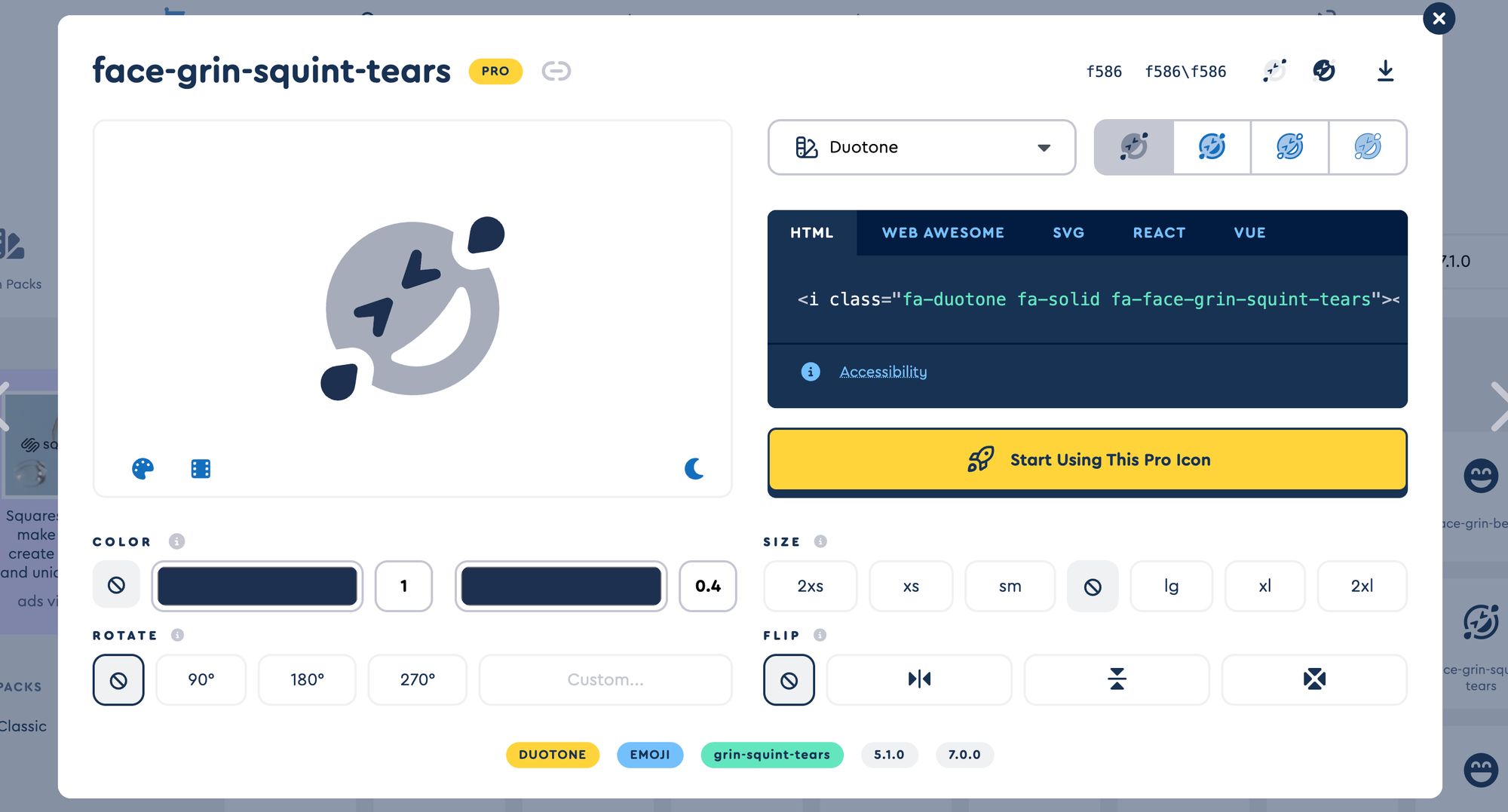
使用变体
fontawesome 支持下载 ICON 不同的变体:
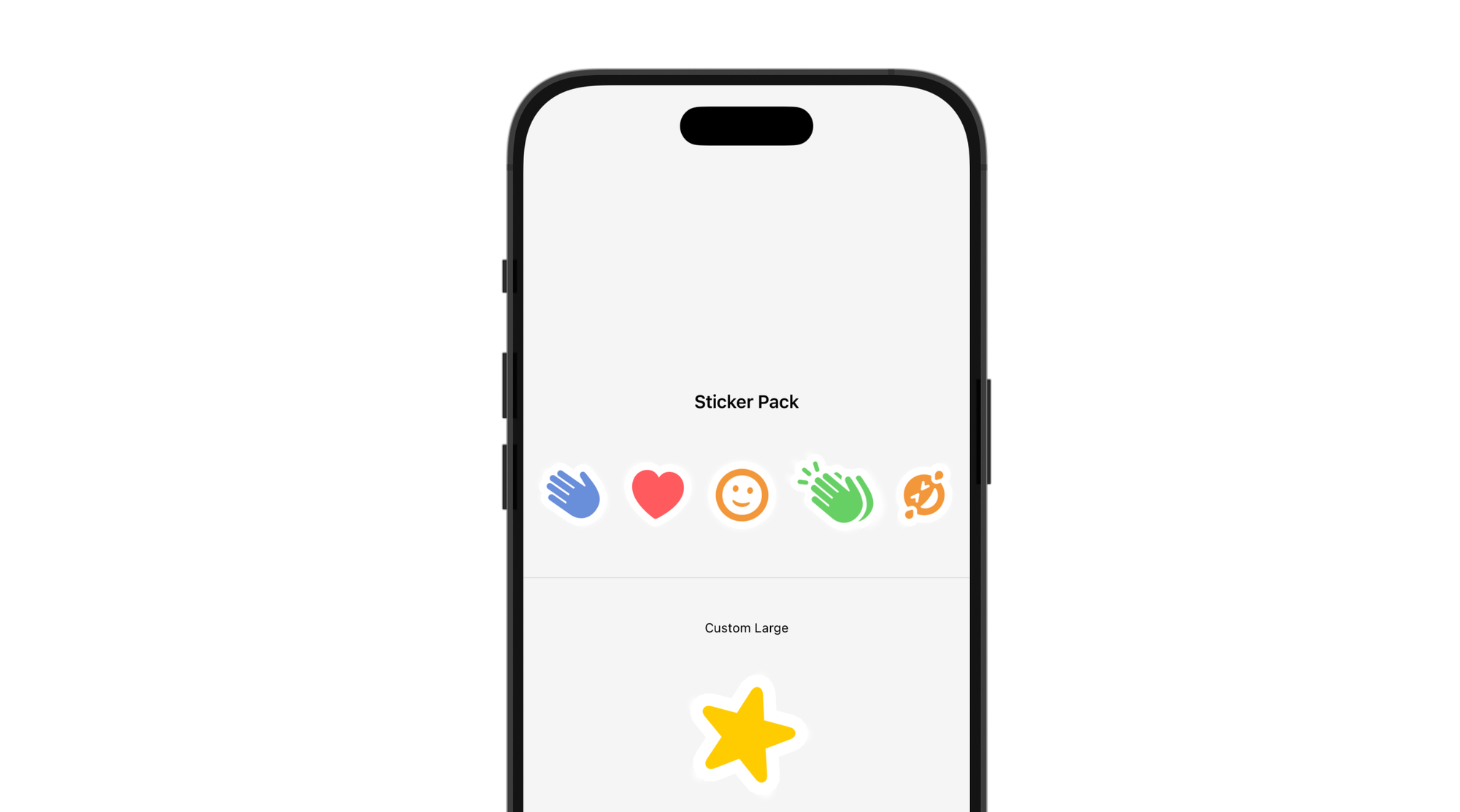
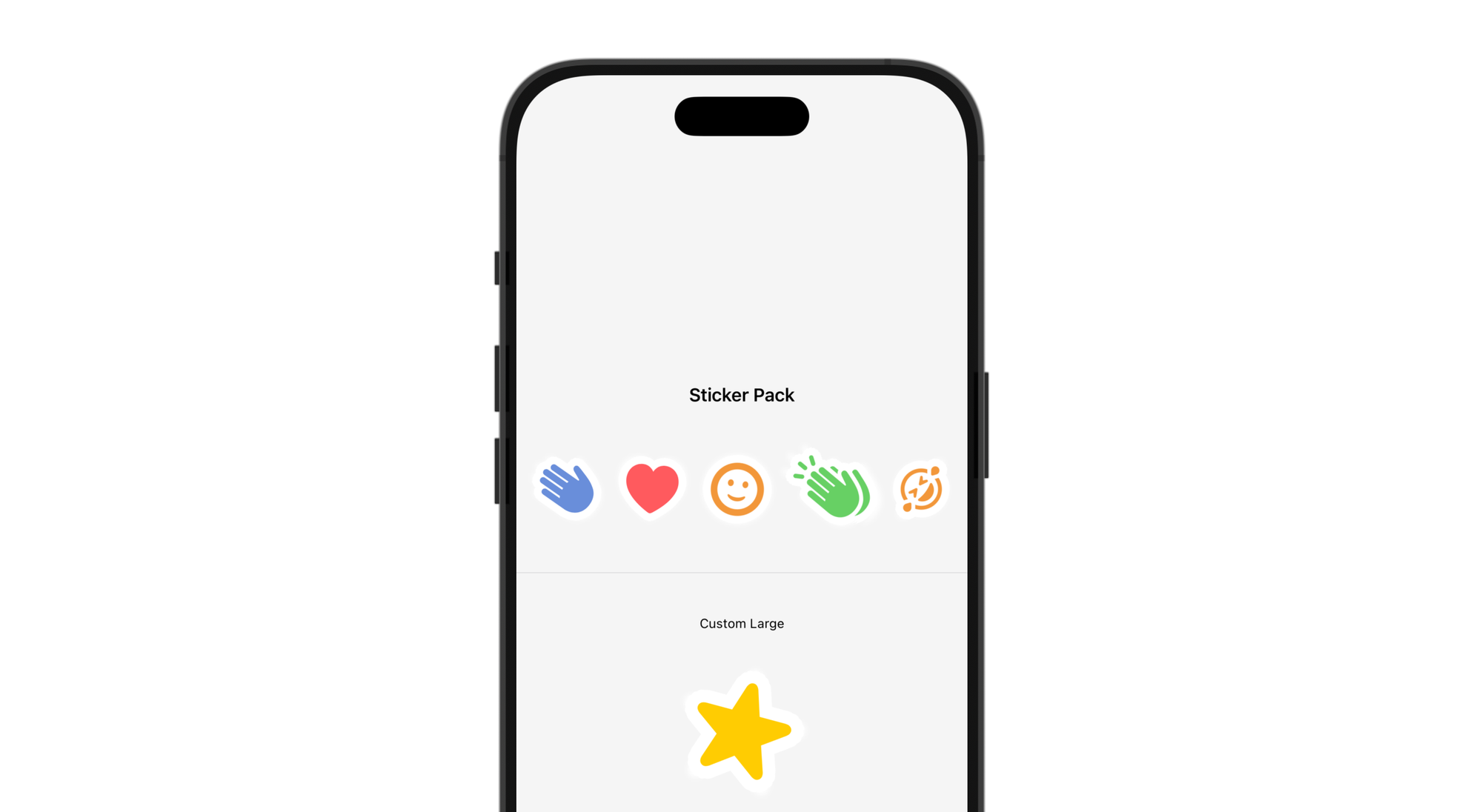
使用不同的变体,可以创建不同的 Sticker 贴纸效果:
解决 Tabview 中 SVG 尺寸过大的问题
在 SwiftUI 的 .tabItem 中使用自定义图标(特别是 SVG)时,标准的 SwiftUI 修饰符(.resizable()、.frame()、.scaledToFit())会被系统忽略,导致图标按原始尺寸渲染,显示过大。
原因
.tabItem 是特殊容器,底层映射到 UITabBarItem,不遵循标准 SwiftUI 布局规则。
解决方案
使用 UIKit/AppKit 预处理图片,强制渲染为 24×24 pt 标准尺寸:
enum AppTab: Int, CaseIterable, Identifiable {
    case home = 0
    case settings = 1

    var id: Self { self }

    var title: LocalizedStringKey {
        switch self {
        case .home: "首页"
        case .settings: "设置"
        }
    }

    /// 自定义图标名称,nil 表示使用 SF Symbol
    var customIconName: String? {
        switch self {
        case .home: "HomeIcon"  // Assets 中的图标名
        case .settings: nil
        }
    }

    /// SF Symbol 备用图标
    var systemIconName: String {
        switch self {
        case .home: "house.fill"
        case .settings: "gearshape.fill"
        }
    }

    @ViewBuilder
    var label: some View {
        Label {
            Text(title)
        } icon: {
            #if os(iOS)
            if let customIcon = customIconName,
               let uiImage = UIImage(named: customIcon) {
                // 核心:使用 UIKit 强制缩放到 24x24
                let size = CGSize(width: 24, height: 24)
                let renderer = UIGraphicsImageRenderer(size: size)
                let resizedImage = renderer.image { _ in
                    uiImage.draw(in: CGRect(origin: .zero, size: size))
                }
                Image(uiImage: resizedImage)
                    .renderingMode(.template)
            } else {
                Image(systemName: systemIconName)
            }
            #elseif os(macOS)
            if let customIcon = customIconName,
               let nsImage = NSImage(named: customIcon) {
                // macOS:使用 AppKit 强制缩放
                let size = NSSize(width: 24, height: 24)
                let resizedImage = NSImage(size: size)
                resizedImage.lockFocus()
                nsImage.draw(
                    in: NSRect(origin: .zero, size: size),
                    from: .zero,
                    operation: .copy,
                    fraction: 1.0
                )
                resizedImage.unlockFocus()
                Image(nsImage: resizedImage)
                    .renderingMode(.template)
            } else {
                Image(systemName: systemIconName)
            }
            #endif
        }
    }
}

// 使用方式
struct ContentView: View {
    @State private var selectedTab: AppTab = .home

    var body: some View {
        TabView(selection: $selectedTab) {
            HomeView()
                .tabItem { AppTab.home.label }
                .tag(AppTab.home)

            SettingsView()
                .tabItem { AppTab.settings.label }
                .tag(AppTab.settings)
        }
    }
}
关键点
┌──────────┬────────────────────────────────────┐
│ 要点 │ 说明 │
├──────────┼────────────────────────────────────┤
│ 图标尺寸 │ 24×24 pt(iOS TabBar 标准) │
├──────────┼────────────────────────────────────┤
│ 渲染模式 │ .template 支持系统自动着色 │
├──────────┼────────────────────────────────────┤
│ 跨平台 │ #if os(iOS) / #elseif os(macOS) │
├──────────┼────────────────────────────────────┤
│ 备用方案 │ 自定义图标不存在时回退到 SF Symbol │
└──────────┴────────────────────────────────────┘

Comments ()